Managing Conversations with Unified Inbox
Written By Cold Navigator
Last updated 8 months ago
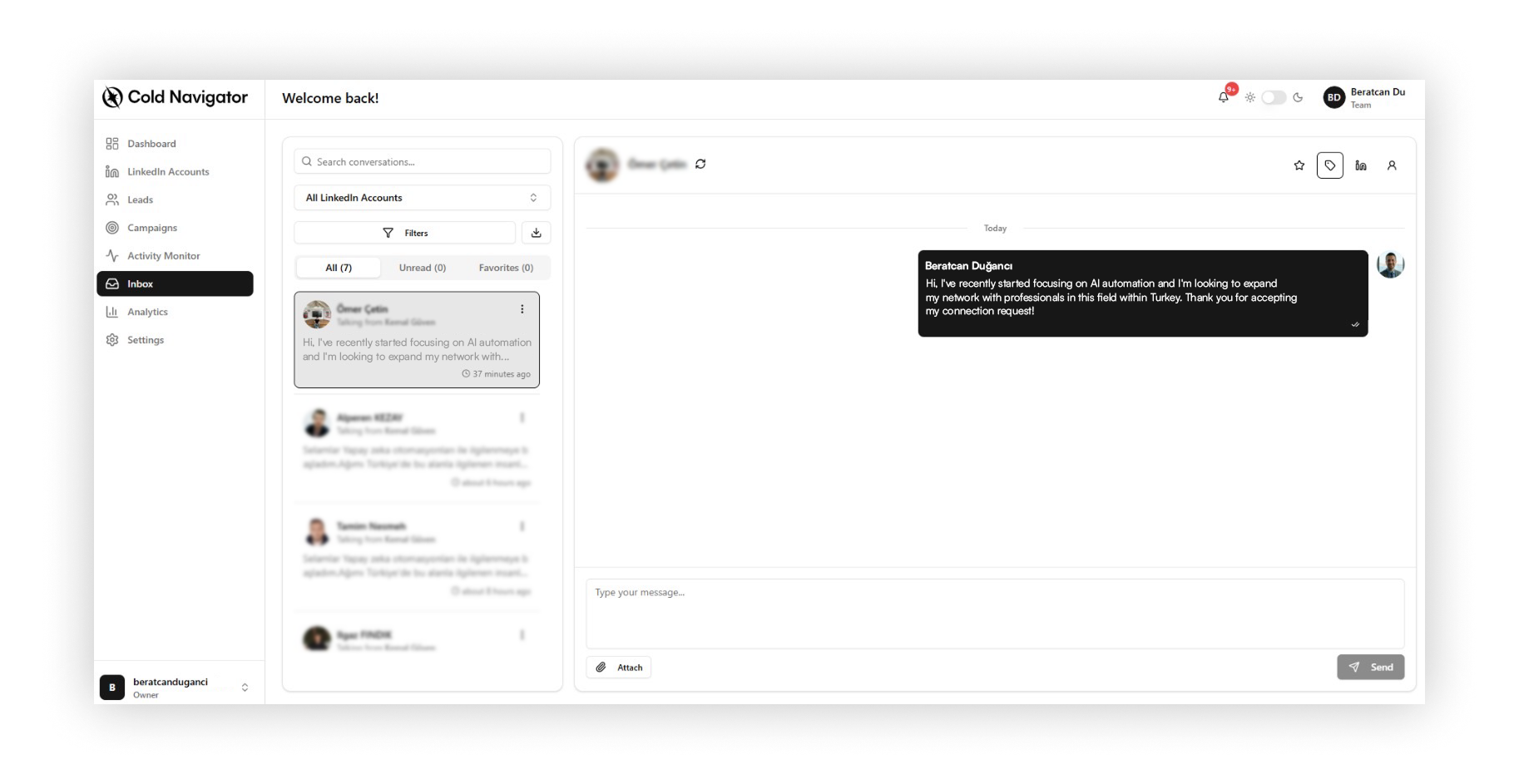
Cold Navigator's Unified Inbox allows you to manage replies from all your connected LinkedIn accounts in one single place. You don't need to log in and out of different LinkedIn profiles to answer your leads.
How to Access the Inbox
Click on "Inbox" in the sidebar menu.
On the left, you will see a list of all active conversations.
Unread messages are highlighted to grab your attention.
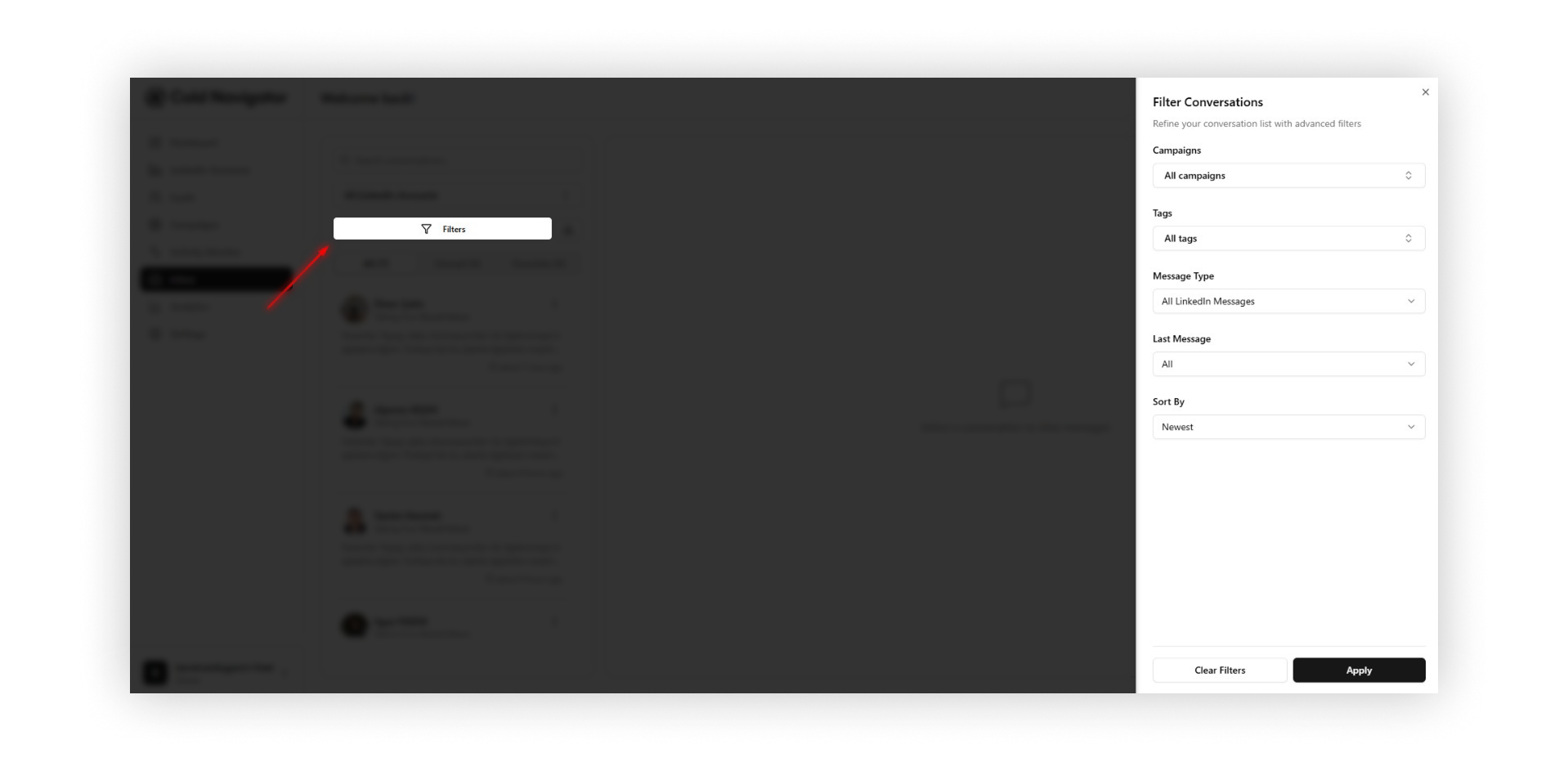
Filtering Conversations
You can filter your inbox to focus on what matters most:
Unread: Show only messages you haven't opened yet.
Replied: Show leads who have replied to your campaigns.
Interested: Show leads you have tagged as "Interested".
Replying to a Lead
Select a conversation from the list.
Type your message in the chat box at the bottom.
Click "Send".
The message will be sent instantly from the LinkedIn account that started the campaign.
Tagging Leads
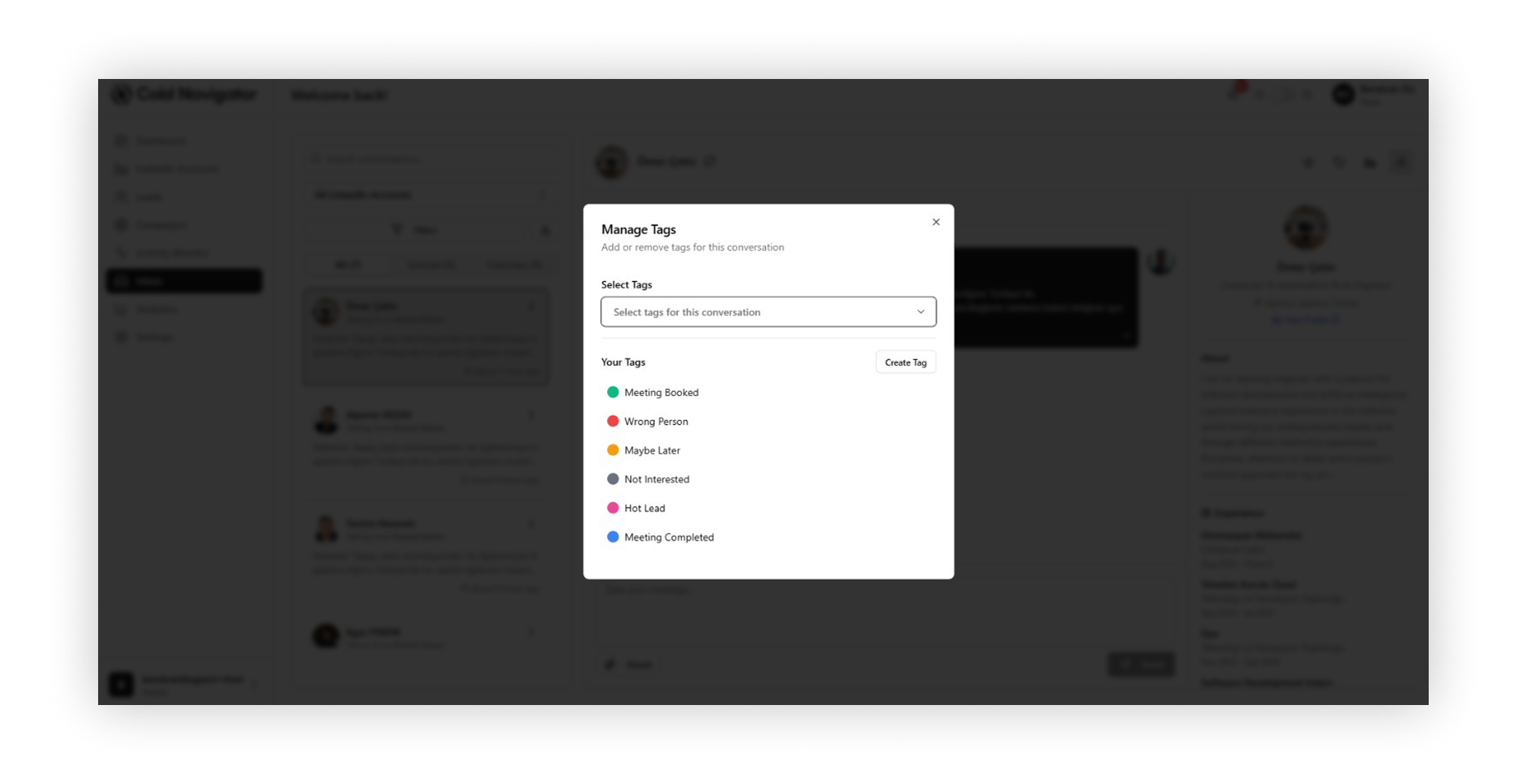
Organize your pipeline by tagging leads based on their interest level.
While in a conversation, look for the "Tags" or "Lead Info" section on the right.
Select a tag like "Interested", "Meeting Booked", or "Not Interested".
This helps you filter and export hot leads later.
Was this helpful?
Still need help? Ask the team